Instructions to activate and use licenses key
To use licenses key on iRender server, you should follow these instructions:
Step 1: Create a machine with pre-installed software
- Login to app.gpuhub.net with your iRender account
- Create a new machine with your desired pre-installed software. Your machine will then be pre-configured.
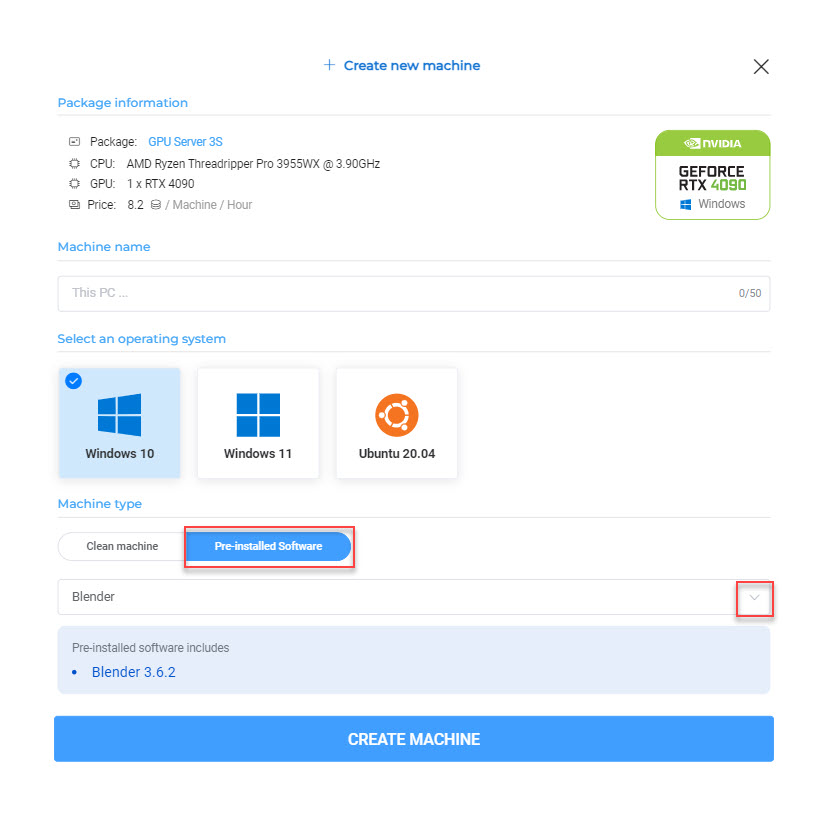
- If you have created a machine, skip this and start from Step 2.
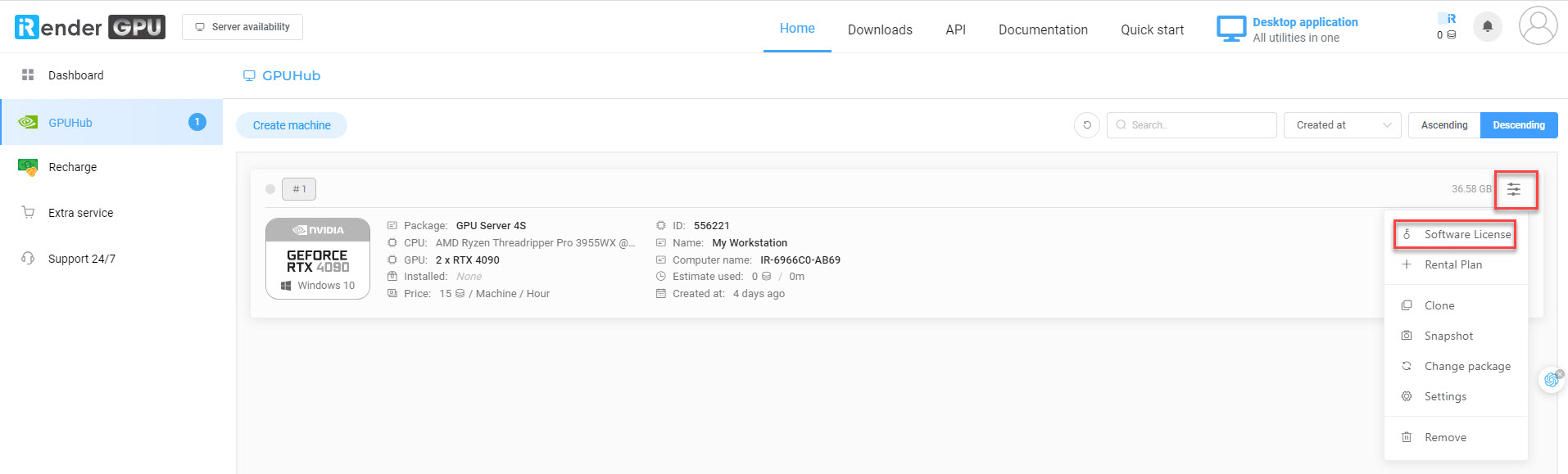
Step 2: Activate the Software License
- On the top-right corner of a selected machine, click the 3-line menu icon » Choose Software License
On the pop-up Software License, click Enable.
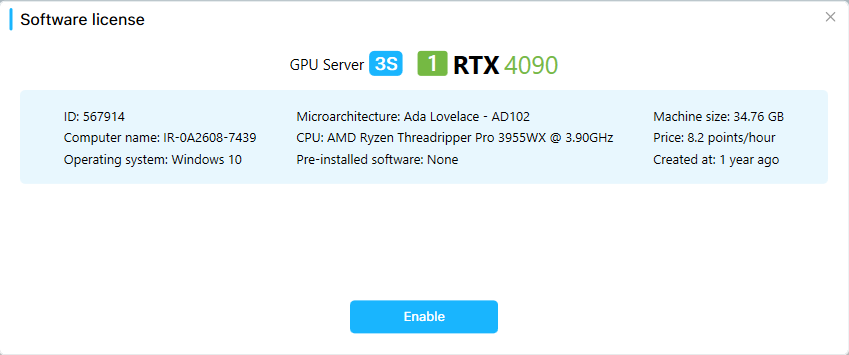
Step 3: Connect to the machine and Login License Management app
- If you created a machine beforehand, install the License Management app and Maxon app. The installer is inside X drive, please take it to the desktop of the machine and install it.
- Open the License Management app and choose to enable the key license you want to use.
- Click “Log in and Connect License”
- Login successfully and you are able to use the license now
NoteTo use the License Management app, you should install Maxon App. Both installers are inside X drive.